


Move WhatsApp Chats to Telegram and Other Messengers: A Simple Guide
WhatsApp may face slowdowns or blocks in some regions. Learn how to export chats and transfer them to Telegram and other apps with easy steps for Android, iPhone, and desktop.
WhatsApp could become less reliable in some regions, so it’s smart to prepare. This guide explains how to export your chats from WhatsApp and move them to Telegram and other messaging apps, with clear steps for Android, iPhone, and desktop. The process stays inside the apps and doesn’t require extra tools.
What you should know before you start
The export feature lets you save a chat as a file or share it directly to another app. It is not a full account transfer, but it preserves messages and media when possible. Here are important points to keep in mind:
- Exports are per chat. WhatsApp allows exporting one chat at a time, so you’ll repeat the process for each conversation.
- There must be a receiving chat in the target app. You can only move a chat if the contact or group already exists in the other messenger.
- Chat type matters. Personal chats go to private conversations; group chats go to groups in the destination app.
- Large chats can take longer. If a conversation has many media files, creating the export and importing may take extra time.
- New messages go to the end. If the destination chat is older or already active, the imported messages may appear at the bottom, not in strict chronological order.
- Not everything transfers. Text, photos, videos, documents, and voice messages can be moved; calls, stickers, reactions, pins, and other in-app elements may not be included.
- There is a size limit for attachments. Very large media may be placed in a separate archive rather than embedded in the export.
- Backups aren’t included. Only data present on the device is exported; cloud backups aren’t part of the export.
- Export sharing can be restricted. If the group admin or a contact has disabled chat exporting, WhatsApp will block the export.
- Delete the archive after use. The ZIP or archive may contain personal data and is not encrypted by default.
Transfer WhatsApp chats on Android
Ensure both WhatsApp and the target app are up to date. The export process may take time for chat-heavy conversations, but it happens entirely within the apps and doesn’t require third-party tools.
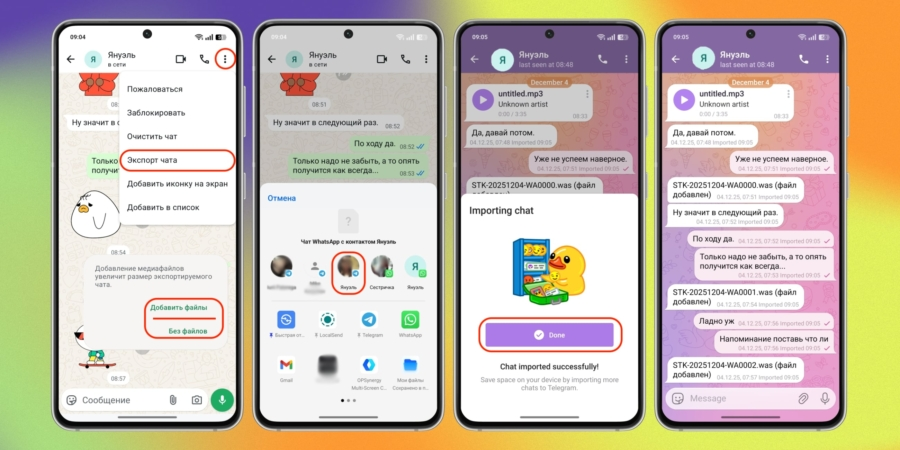
- Open WhatsApp and select the chat you want to transfer.
- Tap the three-dot menu in the top-right corner.
- Choose More → Export chat and decide whether to include media.
- When the export is ready, choose Share and select Telegram or another app.
- In the destination app, pick the contact or group and confirm the import.
- Wait for the import to finish. Messages will appear in the chosen chat with their timestamps.
If you share to a file manager or cloud storage, the chat is saved as a text file and media goes into a ZIP archive.
Transfer WhatsApp chats on iPhone
The iPhone steps are similar, but the menu is located in the chat settings accessed from the contact or group name at the top of the screen. After exporting, you can immediately share the file to Telegram or another messenger.
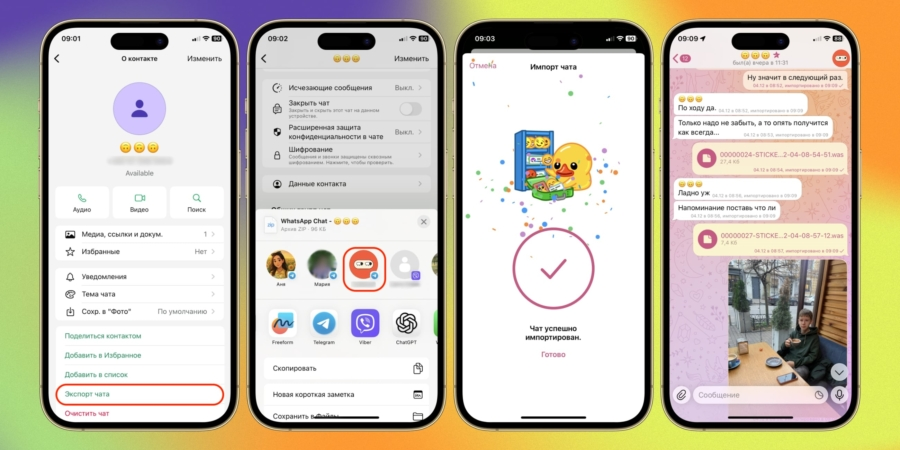
- Open WhatsApp and go to the chat you want to transfer.
- Tap the contact or group name at the top to open chat settings.
- Scroll down and select Export chat.
- Choose whether to export with media or text only.
- After the export, tap Share and pick Telegram or another app to import.
- Confirm the import in the chosen chat and wait for completion. The messages will appear at the end of the conversation.
If you select Files, iCloud Drive, or another storage location, the chat is saved as a text file and media as a ZIP archive.
Transfer WhatsApp chats on a computer
The desktop version also supports chat export, but you can’t move chats directly to another messenger from your computer. The archive saves to your Downloads folder, and you can view the text separately while media stays in the ZIP file.
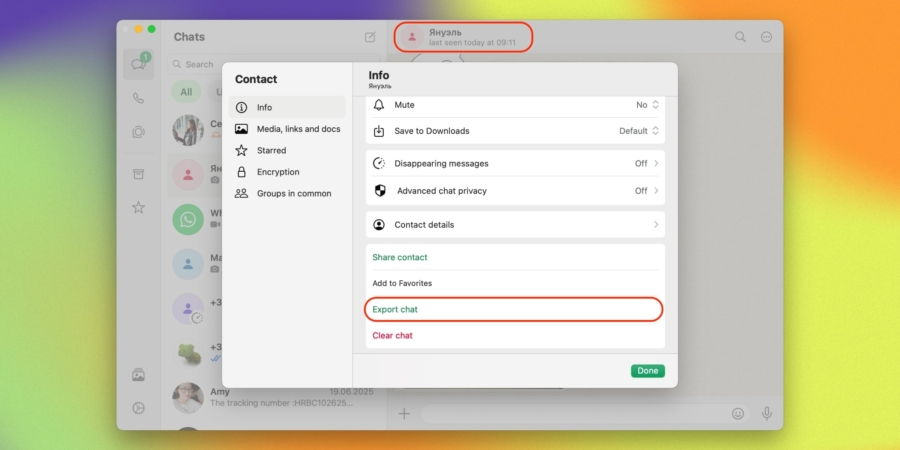
- Open WhatsApp Desktop and select the chat you want to export.
- Click the contact or group name at the top to access the chat settings.
- Choose Export chat and decide whether to include media.
- WhatsApp generates an archive and downloads it to your computer, usually in the Downloads folder.
Expert viewpoint
Expert comment: Exporting chats is a practical way to keep important conversations safe when you switch apps. A tech specialist notes that timestamps are preserved, but some non-message elements may not transfer.
Short recap
Exporting WhatsApp chats gives you a portable record that you can move to Telegram or other messengers. The steps are similar across Android, iPhone, and desktop, with some minor differences in menus. Expect potential delays with large chats, and remember that some features may not transfer.
Key insight: Plan ahead—exporting chats is your safeguard when moving between apps, but not all data carries over perfectly; expect partial transfers and delays with bigger conversations.