


Unlock the Full Potential of Your Router with Firmware Updates
Learn how updating your router's firmware can enhance your home network's security, unlock new features, and boost internet speed.
Boost your internet speed and secure your home network effortlessly.
If you haven't checked your router’s settings for a while, chances are the manufacturer has released firmware updates during that time. Ignoring these updates means missing out on important benefits and leaving your network vulnerable. Fortunately, updating firmware is a straightforward process.
Why You Should Update Your Router’s Firmware
Enhance Network Security
The primary reason to update your router's firmware is to maintain robust security. Firmware often contains patches for vulnerabilities that hackers can exploit. Without these updates, your devices become more susceptible to viruses and cyber threats.
Access New Features
Manufacturers frequently add valuable features via firmware updates. You might gain access to parental controls, repeater modes, or other useful functionalities that improve your router’s capabilities.
Improve Performance and Speed
Updating firmware can also optimize your router’s performance, potentially increasing your internet speed and overall network stability.
How to Update Your Router’s Firmware
Modern routers may support automatic updates or updates through mobile apps. However, many models require manual updating, which generally follows a similar procedure.
Download the Correct Firmware
Identify your router's model name, usually found on the device’s label. Then, download the latest firmware from the manufacturer’s official website. For example, a router from TP-Link might be labeled as TL-WR840N. Visit the official site and locate your specific model.

Look for sections labeled “Support,” “Downloads,” or “Firmware” to find the appropriate files.
It’s critical to download the exact firmware version for your model to avoid damaging your device.
Some models have multiple hardware versions. Verify the hardware version on your router to ensure compatibility.
Access Router Settings
Once the firmware is downloaded, open a web browser and enter your router’s IP address, commonly 192.168.1.1 or 192.168.0.1. If these don’t work, consult your router’s manual.
You’ll reach the login page where you need to enter your username and password. Default credentials are often “admin” for both fields or “admin” and “1234.” If these don’t work, check your router’s documentation.

Backup Your Current Settings
Firmware updates may reset your router to factory settings, causing connection issues. To avoid this, back up your current configuration.
Find the backup option, usually under “Backup and Restore,” “Advanced Settings,” or “System Tools.” Click “Backup” to save your settings to your computer.

After updating, you can restore these settings by selecting the saved file and clicking “Restore.”
Install the Firmware Update
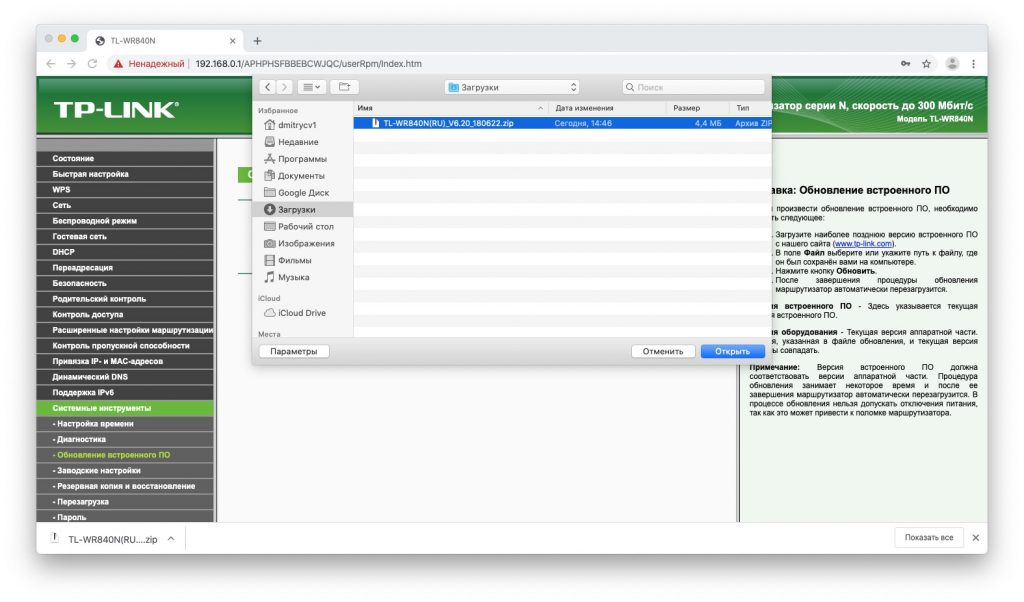
Locate the firmware update option in your router’s settings, often found under “Advanced,” “Management,” or “System Tools.” Select “Firmware Update” or “Software Upgrade.”
Verify that the downloaded firmware version is newer than your current version, which is displayed in the router’s interface.

Upload the firmware file by clicking “Open” or “Browse” and selecting the file you downloaded. Some routers support USB updates; in that case, copy the file to a USB drive and connect it to the router.

Click “Update” and wait patiently while the process completes. Do not interrupt the update, as this may permanently damage your router.
Avoid updating during power outages or storms to prevent interruptions.
Once finished, your router will reboot automatically. If it doesn’t, restart it manually.
Explore useful articles in Technologies as of 18-02-2020. The article titled " Unlock the Full Potential of Your Router with Firmware Updates " offers in-depth analysis and practical advice in the Technologies field. Each article is carefully crafted by experts to provide maximum value to readers.
The " Unlock the Full Potential of Your Router with Firmware Updates " article expands your knowledge in Technologies, keeps you informed about the latest developments, and helps you make well-informed decisions. Each article is based on unique content, ensuring originality and quality.