


Ultimate Guide to Connecting Wired and Wireless Headphones to Your Computer
Learn how to easily connect any headphones—wired or wireless, with or without a microphone, USB or Bluetooth—to your computer or laptop in minutes with this comprehensive guide.
Even a seemingly simple task like connecting headphones to a computer has its own intricacies.
Available Connection Methods
There are several ways to connect audio devices, and the best choice depends on the headphone connectors and the interfaces available on your computer. Here are the three main methods.
3.5mm Audio Jacks
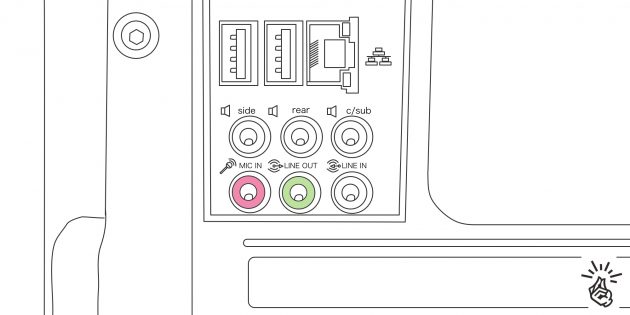
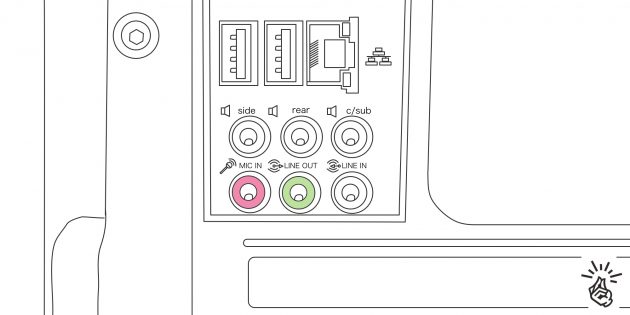
The most common connection type is the 3.5mm audio jack found on sound cards. Desktop computers usually have separate ports for headphones and microphones (Mic and Line Out), while laptops often combine these into a single jack to save space.
Bluetooth Wireless Connection
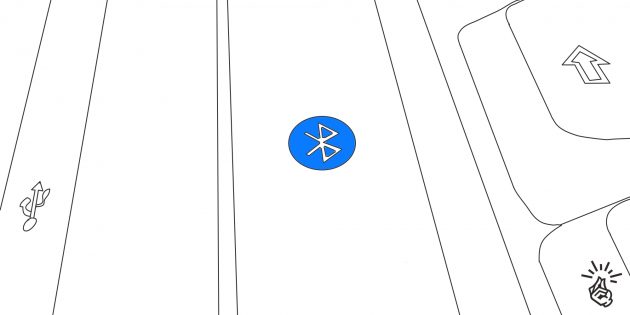
Wired headphones are increasingly being replaced by wireless models that connect via Bluetooth. To use Bluetooth headphones, your computer must have a Bluetooth module. Most laptops come with one built-in, but desktop PCs typically only include Bluetooth in higher-end motherboards or require an external adapter.
USB Connection

USB ports offer a versatile way to connect various devices, including headphones. This connection method is less common but is often preferred for gaming headsets on desktop computers.
Connecting Wired Headphones Without a Microphone
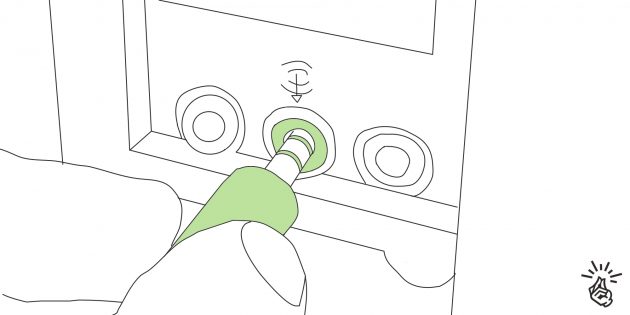
Connecting headphones without a microphone is straightforward. Since there is only one cable, plug it into the green audio jack on the back or front panel of your desktop PC. On laptops, color coding may not be present, but headphone symbols usually indicate the correct port.
Connecting Wired Headphones With a Microphone

For headsets with two cables, simply plug each into the corresponding audio jacks based on color or symbols—green for headphones and pink for the microphone.
If the number of cables and available jacks don’t match, you’ll need adapters.
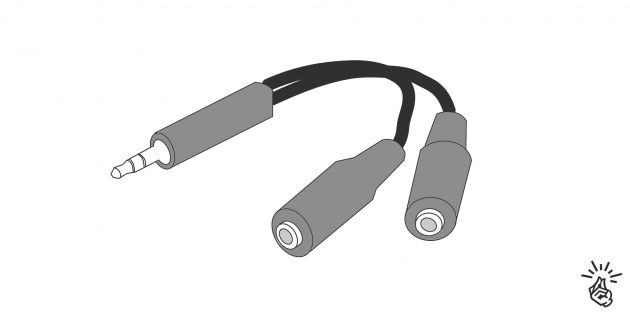
For example, to connect a standard two-cable headset to a laptop with a single combined audio jack, use an adapter with two 3.5mm female ports on one side and a single male plug on the other.

Conversely, to connect a single-cable headset to a desktop PC with separate headphone and microphone jacks, use a reverse adapter with one 3.5mm female port and two male plugs.
Connecting USB Headphones
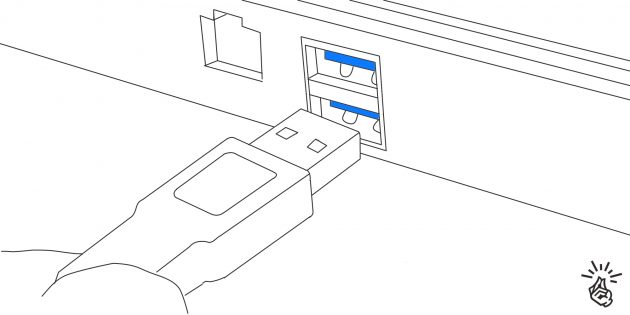
USB headphones are extremely easy to connect. Simply plug the USB connector into an available USB port on your computer, and the device will automatically be recognized and ready to use within seconds.
While most USB ports work, sometimes front panel ports may not be supported properly. In such cases, try connecting the headphones to one of the USB ports on the motherboard located at the back of your desktop PC.
Connecting Wireless Headphones
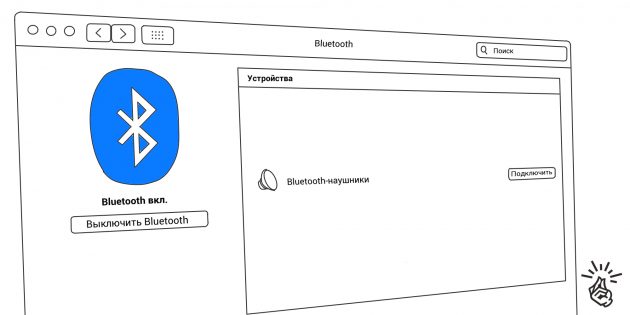
To use wireless headphones, your computer must have an internal or external Bluetooth module. Ensure Bluetooth is enabled, turn on your headphones, then navigate to Bluetooth settings. Wait for your system to detect the headphones, select them from the list, and click “Connect.”
How to Test Your Headphones
To verify your headphones are working, play audio through any app—such as a YouTube video or music player. To test the microphone, record audio with a voice recorder app or make a call using Telegram or another messaging app.
If you encounter any issues, refer to Zamona’s troubleshooting tips to resolve common headphone connection problems.
Discover engaging topics and analytical content in Technologies as of 26-03-2020. The article titled " Ultimate Guide to Connecting Wired and Wireless Headphones to Your Computer " provides new insights and practical guidance in the Technologies field. Each topic is meticulously analyzed to deliver actionable information to readers.
The topic " Ultimate Guide to Connecting Wired and Wireless Headphones to Your Computer " helps you make smarter decisions within the Technologies category. All topics on our website are unique and offer valuable content for our audience.