


Year-End Digital Declutter: Sort Photos, Music & Tabs for Less Stress
End the year with a calmer digital space. Practical steps to prune photos, tidy music libraries, organize browser tabs, and streamline saved messages for less stress and faster access.
As the year wraps up, many of us feel overwhelmed by digital clutter. Our phones and computers overflow with unread photos, scattered music, saved links, and dozens of browser tabs. Here is a practical, step-by-step plan to reclaim order and reduce stress.
Declutter your photo gallery
I found my photo library overflowing—thousands of shots from trips, events, and everyday moments, including many duplicates and repeated sunsets. Deleting everything at once is too drastic, but you can keep a small selection of meaningful images and remove the rest.
Delete with swipes
If you have time to review each photo, certain apps make the job easier. For example, the Sponge app lets you move photos to the trash with a quick swipe left, while swiping right keeps the image. The trash batch can be emptied later with a single confirmation.
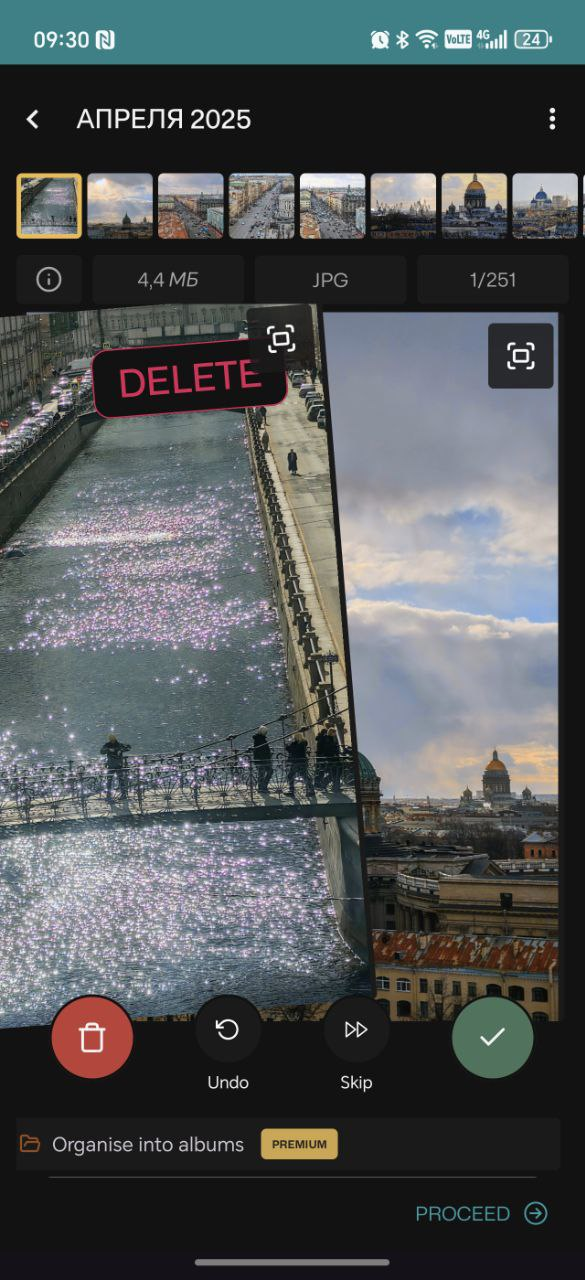
That approach works well at first, but dozens of swipes can become tiring over time.
Counting photos
Another option is an app that tracks your progress. For instance, Photo Flow shows your gallery with a clear counter: how many photos you reviewed, how many you deleted, and how much space you freed. This creates a natural checklist and motivates you to continue.

You can pick up where you left off, jump to a specific month, or run a batch clean. If you have daily viewing limits, you may prefer a slower pace; otherwise, the process can take a long time.
Finding duplicates
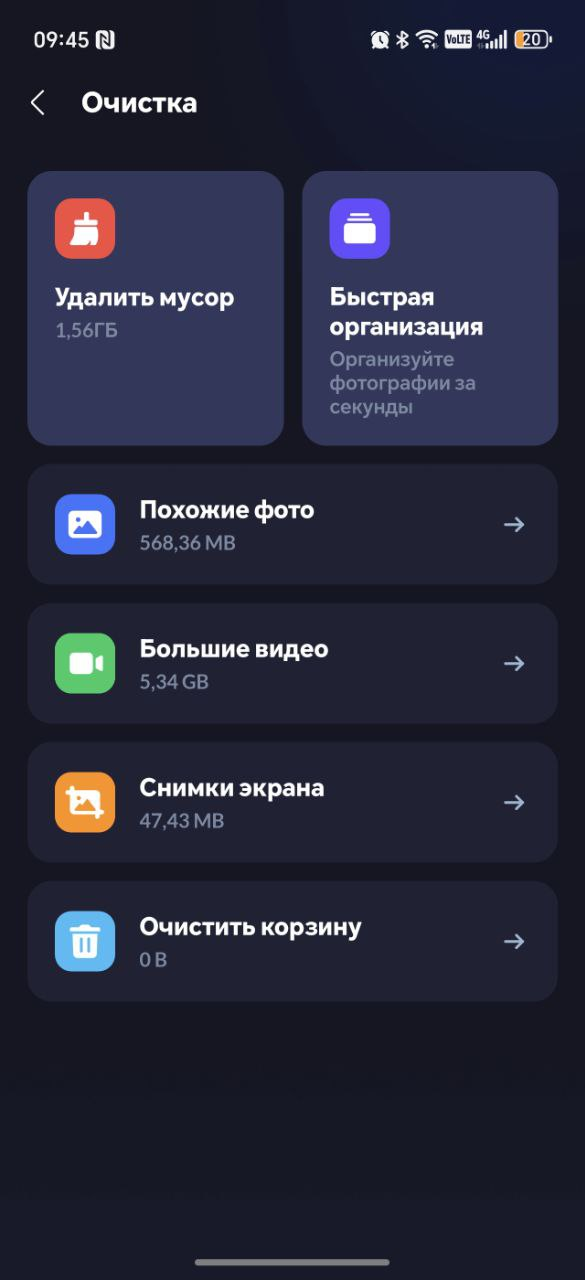
For those who shoot many similar frames, checking for duplicates saves a lot of space. Tools like Remo Duplicate Photos Remover or the built-in features of some galleries can identify similar or identical images and mark them for bulk deletion.

Filtering by location
Location-based filtering helps you reduce clutter from places you rarely visit. Google Photos can show images on a map and let you filter by city or neighborhood, saving only the best shots from each place.
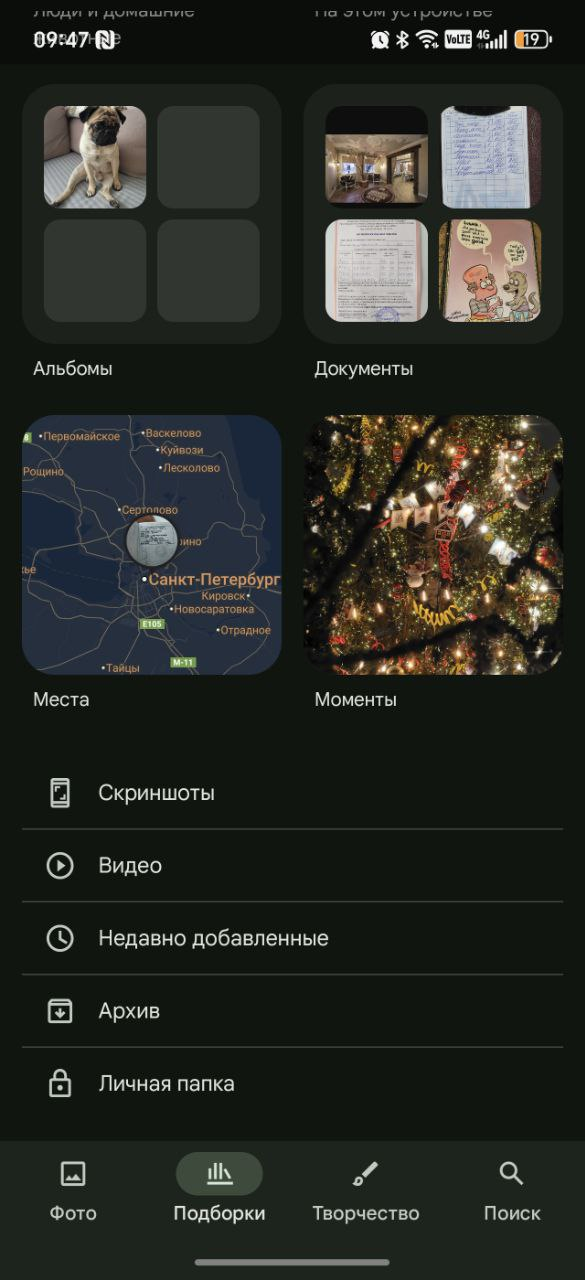
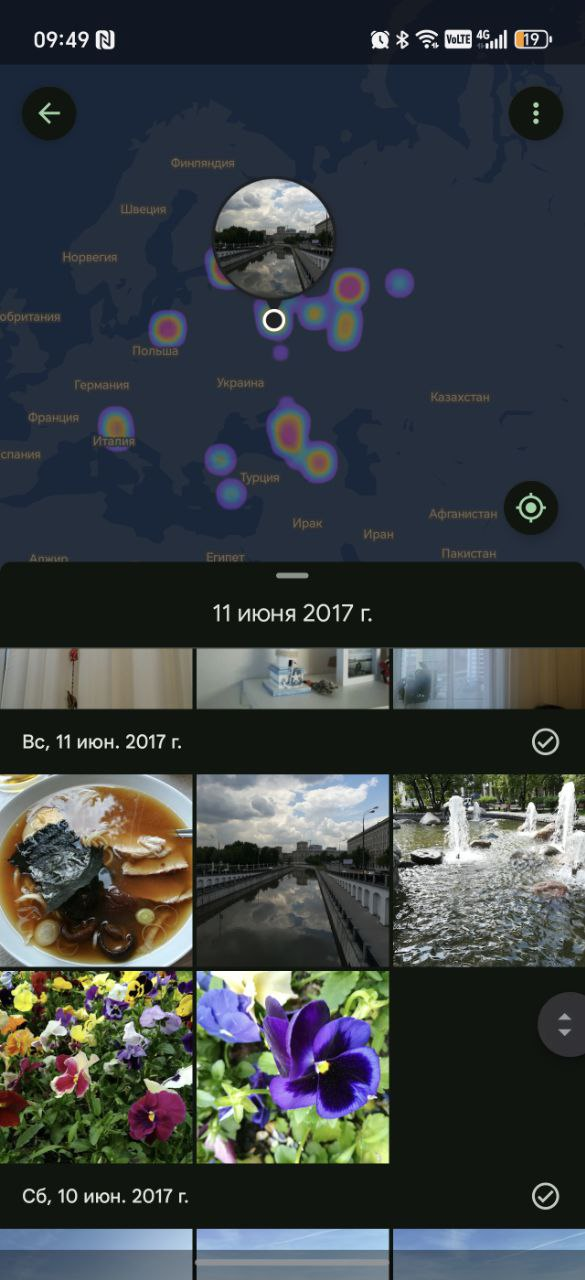
Navigate to the Places section, tap the map, and pick a city or district. The app shows where you took pictures, and you can delete everything except the best keepsakes. This feature works with geo-tagged photos stored locally or in the cloud.
A blunt, but effective approach
If previous methods stall your progress, try a straightforward sweep. Ask yourself whether you will ever revisit the photos. If the answer is mostly no, use a computer to help with bulk deletions: connect your phone to a PC, open the DCIM folder, and select photos in batches for removal. This is often the fastest way to clear space, especially for older shots.
- Connect your phone to a computer and view the device storage.
- Open the DCIM folder where camera photos are stored.
- Use a file explorer to select photo groups and delete them in bulk.
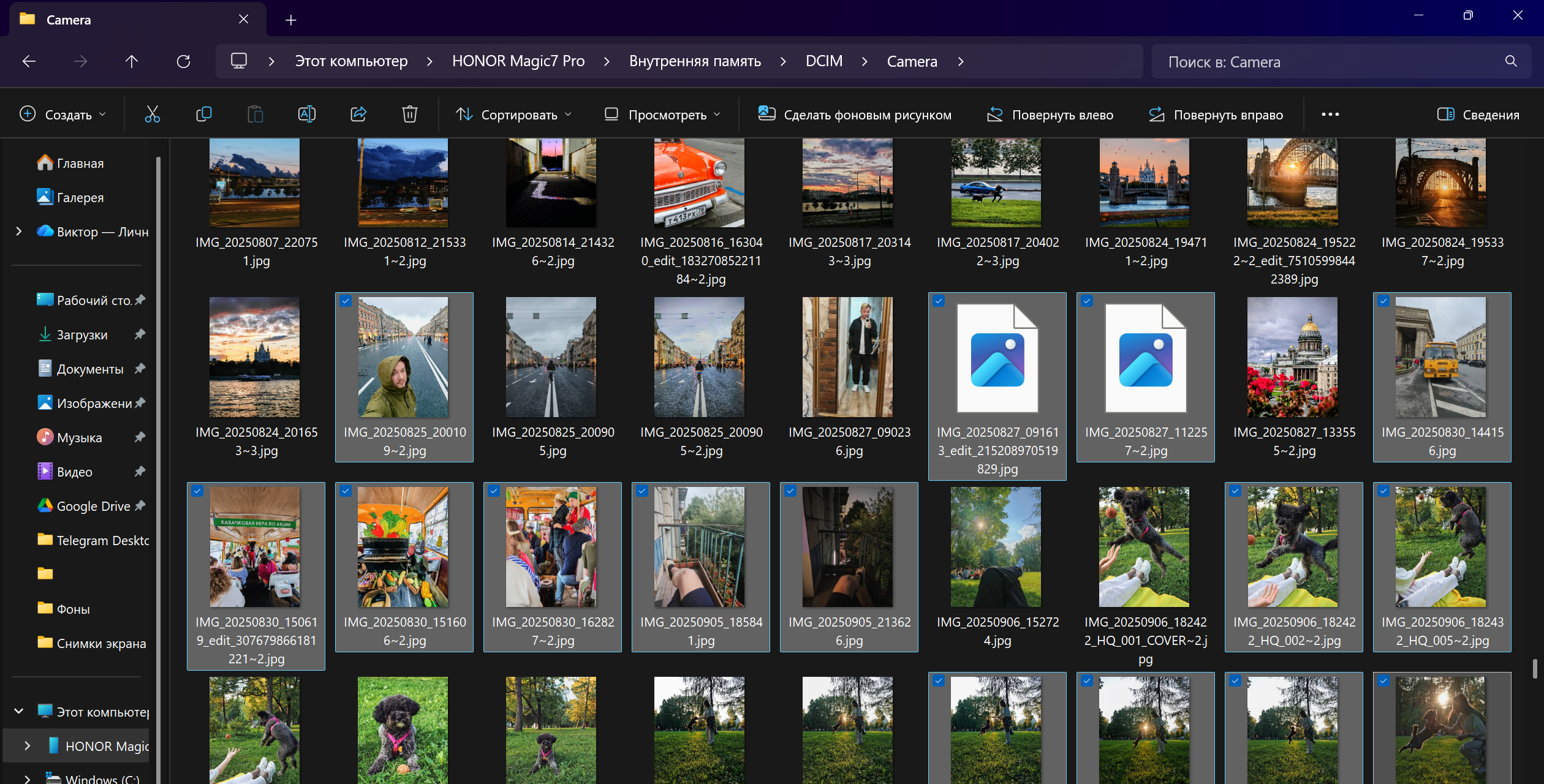
The logic is simple: previews are usually enough to judge importance. Delete anything that doesn’t spark memories or emotion, and you’ll be surprised how many shots you can remove.
Tidy up your music library
Music fills work and home life, but large libraries without organization slow you down. In 2025 I listened to hundreds of thousands of minutes and added many songs to favorites. The result was a massive, unwieldy list that made it hard to find tracks when I needed them.
There isn’t a perfect bulk-action tool in every music app, whether on mobile or desktop. Filters by mood or genre can help narrow the list, making it easier to select tracks for a playlist. On mobile, creating a few empty playlists (e.g., ‘Work’ or ‘Energizing’) speeds up the process of moving tracks between lists.


On mobile, you can quickly filter by mood or genre, select several tracks, and add them to a new or existing playlist. If you need to move many songs at once, consider creating multiple playlists to keep things organized. If you have better methods, please share in the comments.
Organize browser tabs
Chrome remains my main browser, and I typically have 15–20 tabs open along with a second row of reminders. Grouping tabs makes it easier to manage multiple tasks at once.
Group your tabs
Chrome includes a built-in tab grouping feature that doesn’t require extensions. Here’s how to use it:
- Select multiple tabs by holding Ctrl and clicking the ones you want to group.
- Right-click any selected tab and choose the option to “Add tabs to a new group.”
- Give the group a name, pick a color, and confirm.

Group headers collapse or expand with a click, and the color helps you quickly locate the right pages. If you want to add a tab to an existing group, right-click the tab and choose “Add to existing group.”
Manage bookmarks and reading later
Beyond open tabs, you’ll have saved pages, services, and reading lists. A dashboard on a new-tab page helps you stay organized. Start.me is a popular choice for turning the new-tab page into a personal dashboard with widgets for links, notes, and services. You can customize the layout, colors, and background, and even create multiple pages for different areas of life.
Try the Start.me extension for Chrome to build a personalized home for your bookmarks and shortcuts.
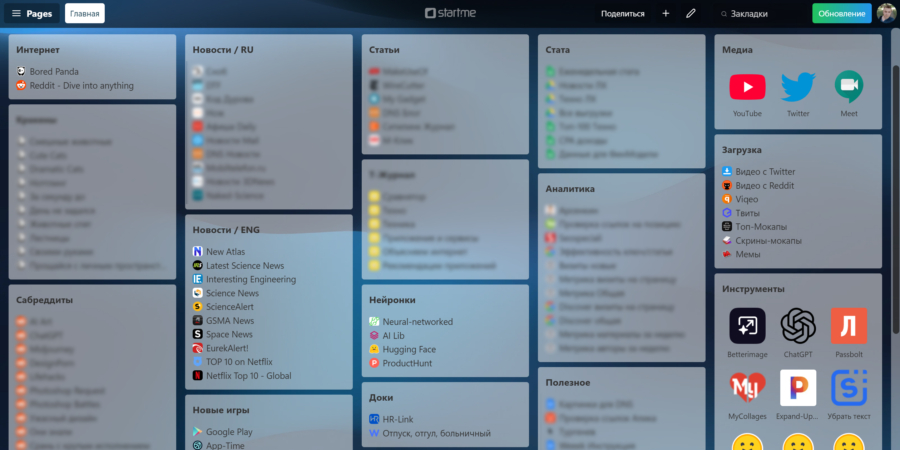
Start.me is flexible enough to host everything from quick links to work manuals and travel resources, all in one accessible space. Explore the extension to tailor it to your workflow.
More on Start.me for Chrome ➝ Start.me
Clean up Telegram
Telegram offers many tools for organizing chats, channels, and saved items, but it’s easy to let things pile up. I used folders to separate work chats from personal ones, but the Saved Messages (the “Favorites”) still grew quickly with quick reads, services to try, or ideas to capture.
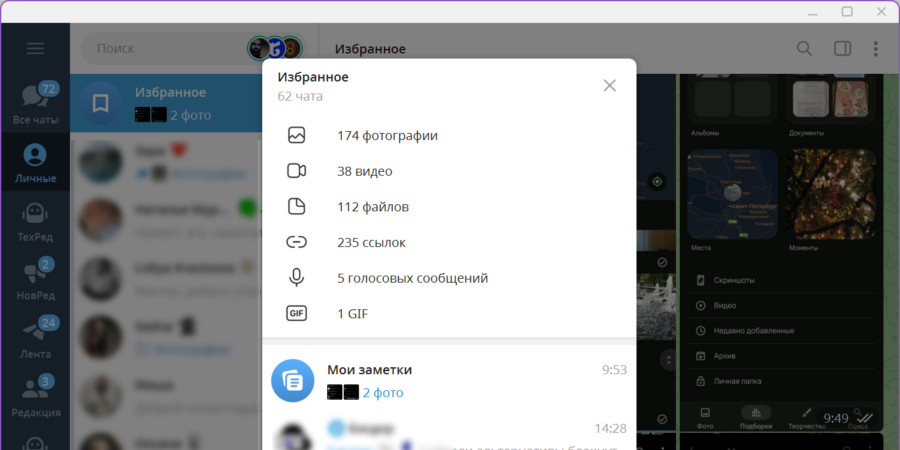
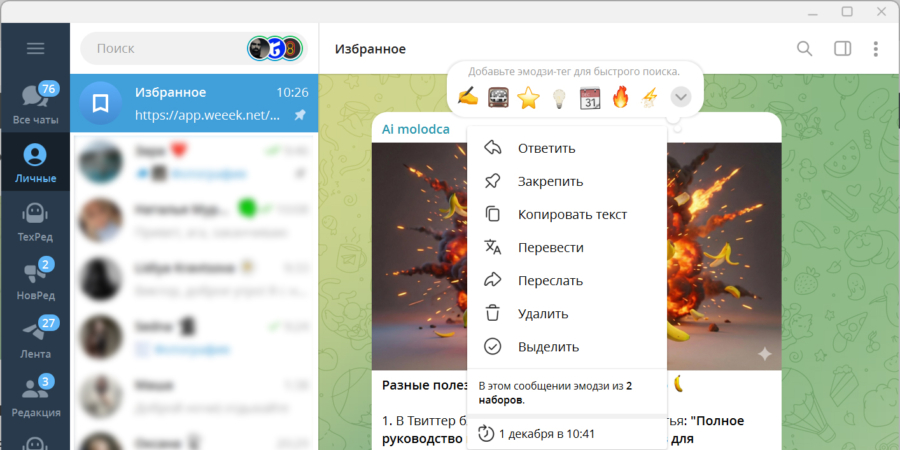
As of writing, my Saved Messages contained hundreds of photos, dozens of links, and many files. Deleting what isn’t needed is straightforward, but sorting can be improved with hashtags or labels. For permanent storage, you can tag key items with descriptive words or emoji and filter by those tags later.
- Brainstorm a few hashtags to categorize saved items (for example, #read, #video, #service, #task).
- As you scroll, tag items with the appropriate hashtag and delete what’s no longer useful.
- Use the hashtag filter to quickly locate related posts later.
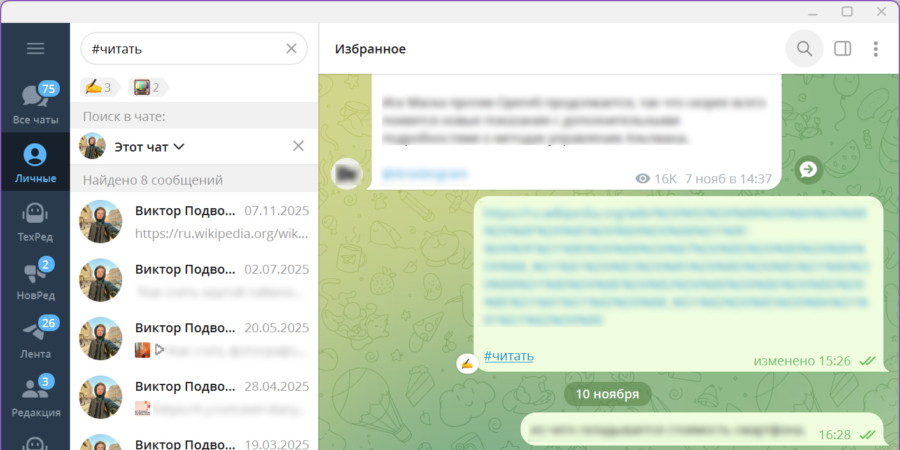
If you also use Telegram Premium, you can tag forwarded messages with emoji tags for quick grouping. For many users, a simple prune from the Saved Messages and a tidy set of hashtags makes a big difference.
Don’t forget to review all channels and chats: remove anything you no longer need and keep only those that matter. A lean chat list reduces distraction and memory load.
What else can you do
To finish the digital cleanup, tidy up files on your phone and computer, delete caches, and remove temporary files. Clearing cache frees space and helps apps run faster. It’s also worth auditing your calendar and task lists; a clean schedule lowers stress and improves focus. This is a separate but related cleanup that pays off steadily.
End-of-year cleanup is doable in small, focused steps. Tackle one area at a time—photos, music, browser tabs, Telegram, and files—and you’ll finish with a calmer device and a clearer mind.
Expert commentary
Expert: A structured digital cleanup reduces cognitive load and makes it easier to find important memories and tasks. Regular, small cleanups outperform marathon sessions that try to do everything at once.
Summary
End-of-year digital decluttering can be approached in manageable steps: prune photos, organize music, tidy browser tabs, and trim saved messages. Small, consistent efforts yield lasting results and less daily stress. A cleaner digital space leads to faster access, better productivity, and a calmer mind.
Small, regular digital cleanups beat one-off marathons; consistent maintenance brings clarity, reduces stress, and improves focus.