


Unlock Hidden VLC Media Player Features to Boost Your Multimedia Experience
Discover lesser-known VLC Media Player tricks including screen recording, video conversion, audio normalization, and seamless YouTube streaming and downloading.
Explore powerful yet underutilized features of the versatile VLC Media Player, a free and cross-platform multimedia player that has evolved over two decades.
Here are seven remarkable VLC capabilities that can enhance your media handling skills:
1. Screen Recording Made Simple

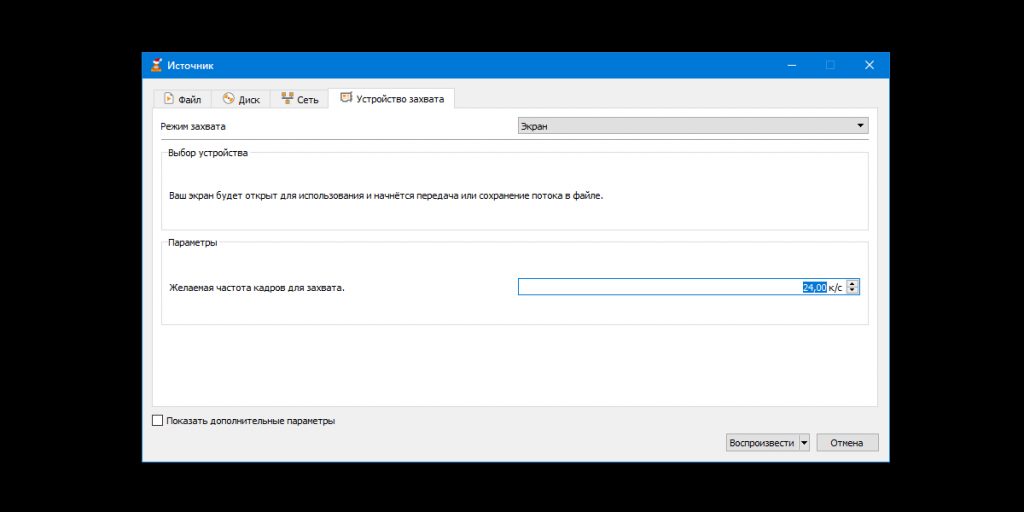
Record your desktop screen effortlessly and save it in various high-quality formats without audio. Follow these steps:
- Go to "Media" → "Open Capture Device".
- Select "Desktop" under the "Capture mode" dropdown.
- Set the desired frame rate between 15 to 30 fps.
- Click the dropdown arrow next to "Play" and choose "Convert".
- Pick a suitable profile like H.264 + MP3 (MP4).
- Click "Browse", name your video file, select a save location, and hit "Save".
- Press "Start" to begin recording.
- Click "Stop" when finished.
2. Efficient Video File Conversion

Convert large video files locally without relying on slow online converters. VLC supports output formats such as MP4, WebM, ASF, and TS. To convert videos:
- Navigate to "Media" → "Convert / Save".
- Click "Add" and select your video file.
- Press "Convert / Save".
- Choose the desired output format under "Profile".
- Click "Browse", enter a filename, select a folder, and save.
- Hit "Start" to begin conversion.
- Wait until the progress bar completes.
3. Stream YouTube Videos Ad-Free

Enjoy uninterrupted YouTube videos without ads directly in VLC. Some videos might not be supported, but most play smoothly. To watch YouTube videos:
- Click "Media" → "Open Network Stream".
- Paste the YouTube video URL into the input box.
- Click "Play".
4. Download YouTube Videos with VLC

VLC can also download YouTube videos by extracting the direct video link. Steps to download:
- Go to "Media" → "Open Network Stream".
- Paste the YouTube URL and click "Play".
- Navigate to "Tools" → "Codec Information".
- Copy the URL from the "Location" field.
- Open this URL in a web browser, right-click the video, and select "Save Video As".
5. Customize Audio with the Built-In Equalizer

Fine-tune your audio experience by adjusting 11 customizable bands or choosing from presets. To access:
- Click "Tools" → "Effects and Filters" → "Audio Effects" → "Equalizer" and enable it.
- Adjust the sliders manually or select a preset, then save your settings.
6. Smooth Out Volume Fluctuations with Audio Normalization

Prevent sudden loud explosions or quiet dialogues by enabling audio normalization. To activate:
- Open "Tools" → "Preferences" → "Audio".
- Check "Normalize volume to" option.
- Switch to "All" settings view at the bottom left.
- Navigate to "Audio" → "Filters" → "Volume Normalizer".
- Set buffer limits and volume levels (recommended: 10 and 1.60 respectively).
- Save changes and restart VLC.
7. Resume Playback from Last Watched Position

VLC remembers your position in up to 100 recently played files, allowing you to pick up where you left off. To enable:
- Go to "Tools" → "Preferences" → "Interface".
- Set "Continue Playback?" to "Always" and save.
Download VLC for Windows, Linux, or macOS and unlock these powerful features today →
Discover engaging topics and analytical content in Technologies as of 29-01-2020. The article titled " Unlock Hidden VLC Media Player Features to Boost Your Multimedia Experience " provides new insights and practical guidance in the Technologies field. Each topic is meticulously analyzed to deliver actionable information to readers.
The topic " Unlock Hidden VLC Media Player Features to Boost Your Multimedia Experience " helps you make smarter decisions within the Technologies category. All topics on our website are unique and offer valuable content for our audience.