



Unlock the Full Potential of iBooks on Your iPhone and iPad with These Expert Tips
Discover powerful yet often overlooked features in the iBooks app, from seamless synchronization to Siri integration, that will transform your reading experience on iPhone and iPad.
Enhance your reading journey by mastering synchronization, Siri interaction, and other valuable but underappreciated iBooks features.
1. Navigate Efficiently with the Menu

Many users only access the navigation menu to adjust fonts, but it offers much more. Simply tap the screen to reveal it.
You’ll see five buttons: the arrow closes the book and returns to your library, the 'hamburger' icon opens the table of contents, bookmarks, and notes. The three buttons on the right let you customize fonts, search the text, and add bookmarks.
2. Create and Manage Notes

Annotate your reading material to enhance comprehension—perfect for students and anyone working with complex texts.
Highlight any word or passage by pressing and holding, then select “Add Note.” A panel will appear to enter your comment. Highlighted notes will appear in yellow and are accessible from the table of contents menu.
3. Save Important Quotes

Keep track of significant excerpts to revisit key information quickly.
Highlight text and select “Highlight” to save a quote. Tapping a quote opens a menu where you can change highlight colors, convert it to a note, or share it via the export options.
4. Add Bookmarks for Quick Access

Use bookmarks to easily return to specific pages. Open the navigation menu and tap the bookmark icon in the top right corner, which will turn red when active.
Bookmarks are organized alongside the table of contents, quotes, and notes, with a dedicated tab for quick navigation.
5. Customize Your Reading Layout
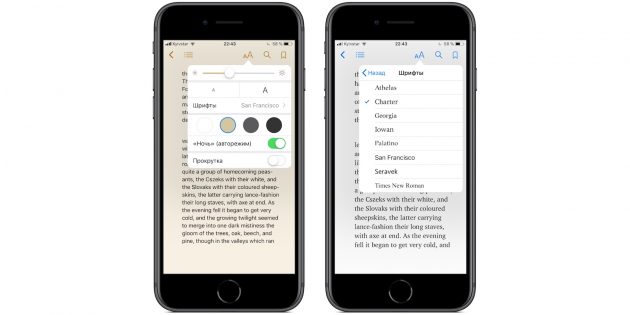
Adjust fonts, sizes, and backgrounds to suit your preferences using the “Aa” button.
Choose from eight font styles, adjust text size to control page content, select background colors, tweak screen brightness, and enable Night Mode for automatic dark theme switching in low light.
6. Switch to Scroll Navigation

If page swiping isn’t comfortable, try scroll navigation.
Tap the screen, select “Aa,” and enable the “Scrolling” toggle. The book will reformat, allowing you to scroll up and down smoothly through the text.
7. Play Audiobooks with Siri

iBooks supports audiobooks accessible via a dedicated tab. Instead of manually opening the app, simply ask Siri to play your audiobook, making hands-free listening effortless.
8. Synchronize Your Library Across Devices

Leverage iCloud to sync your reading progress and entire library across all Apple devices linked to your Apple ID, including iPads and Macs.
Enable this by going to Settings, tapping your profile, selecting iCloud, scrolling to iCloud Drive, and toggling on “Books.” This syncs all your books, not just those purchased from the iBooks Store.
9. Save Documents as PDFs

iBooks supports PDF format, allowing you to save documents without downloading them from the cloud or iTunes.
Use the standard “Share” menu in apps like Safari or Mail, select “Copy to Books,” and your content instantly appears as a PDF in iBooks for easy access anytime.
10. Utilize the Advanced Menu Options

The iBooks interface now features five main tabs with additional sections like recommendations, collections, and charts.
Access the advanced menu by tapping the three-dot icon at the bottom right of any book or document. Quickly rate, review, add to collections, mark as read, or share with friends—all from one convenient spot.
Discover the latest news and current events in Stylish Home Decor as of 19-12-2018. The article titled " Unlock the Full Potential of iBooks on Your iPhone and iPad with These Expert Tips " provides you with the most relevant and reliable information in the Stylish Home Decor field. Each news piece is thoroughly analyzed to deliver valuable insights to our readers.
The information in " Unlock the Full Potential of iBooks on Your iPhone and iPad with These Expert Tips " helps you make better-informed decisions within the Stylish Home Decor category. Our news articles are continuously updated and adhere to journalistic standards.