


DIY Guide: Upgrade Your MacBook Pro’s Storage and RAM for Enhanced Performance
Step-by-step instructions on how to replace or upgrade the HDD/SSD and RAM in your MacBook Pro by yourself, saving money and boosting your device's speed.
When it comes to MacBook Pro, having more RAM is always beneficial, and extra storage space is never too much. There's always room to fill with photos, videos, apps, and files.
Apple offers custom configurations for their laptops and desktops with increased RAM and storage options, but the price for these upgrades is often double what you would pay buying components separately. In many regions, including the US, ordering a custom Mac configuration can be expensive compared to sourcing parts yourself. While Apple’s components are tested and come with the latest firmware—especially important for SSDs—you can still save significantly by upgrading on your own.
For example, upgrading an HDD in the US might cost around $100 through Apple, but DIY upgrades can cost less, especially when considering global pricing. However, this approach is not feasible for MacBook Air models since their RAM is soldered onto the motherboard and SSDs are harder to find at reasonable prices. Additionally, MacBook Air requires a special Pentalobe screwdriver for opening, which is less common.
In this guide, we focus on upgrading the storage drive in a MacBook Pro, with tips on upgrading RAM and transferring your personal data quickly and safely.
Cloning Your Drive: The Smart Way to Transfer Data
We’ll use a 15-inch MacBook Pro from 2011 as an example. It currently runs OS X Snow Leopard, with OS X Lion installed but not yet in use. Since this is a temporary machine, it’s best to avoid altering the existing system to maintain the option to revert quickly if needed.
Starting with data transfer is key to saving time. Unlike Windows, where third-party tools are often used for cloning, macOS has had a built-in Disk Utility capable of cloning drives since its early versions. It’s user-friendly and accessible even for beginners.
One challenge is connecting the internal 2.5-inch drive externally via USB. Several solutions exist, such as using an external HDD enclosure or an old MacBook Pro drive as a temporary external drive. External enclosures are affordable and handy for storing media files, replacing optical discs. Alternatively, you can repurpose an old USB drive by extracting its internal components.
Using a standard external USB drive with sufficient capacity, you can clone your system partition. After cloning, replace the internal HDD, boot the MacBook Pro while holding the Option key to select the external drive, and use Disk Utility to clone the system back onto the new internal drive. This process can also be performed using a bootable macOS installation disk.
Step-by-Step Cloning Process
Open Disk Utility, select any drive, and go to the “Restore” tab. Drag your current system partition into the “Source” field and the new external drive into the “Destination” field. Make sure to check “Erase Destination” to format the drive as Mac OS Extended (Journaled). Click “Restore” to begin cloning. For example, cloning about 100 GB of data took just over an hour, much faster than initially estimated.
This process works equally well for SSDs, which provide a much more noticeable performance boost than simply increasing RAM from 4GB to 8GB. Before installing an SSD, check for firmware updates that enable TRIM support—a command that helps maintain SSD performance over time. TRIM is supported natively in Windows 7 and macOS starting from version 10.6.8. Intel offers some of the best SSD models on the market.
Upgrading RAM: Simple and Effective
Once the drive is ready, it’s time to open your MacBook Pro. Place it upside down on a soft surface like a microfiber cloth or neoprene sleeve. Use a Philips #0 screwdriver to remove the screws holding the bottom cover. Screws may have threadlocker (blue dots), so some effort is needed.
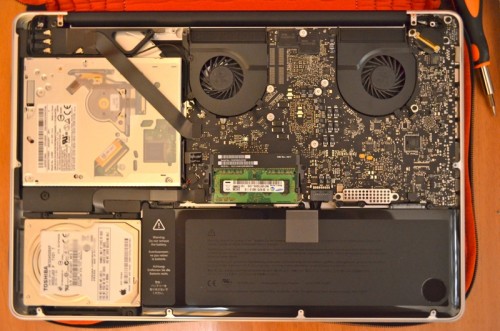
Carefully pry the bottom cover from the hinge side—it fits tightly but should come off without excessive force. Inside, you’ll find easy access to both the HDD and RAM slots. Before touching internal components, discharge static electricity by touching a metal part of the laptop or a grounded metal object.
To upgrade RAM, gently spread the clips on the sides of the memory slots—the RAM modules will pop up slightly for easy removal. Insert new RAM sticks at the same angle, press them firmly until they click into place, ensuring the clips snap back securely. Incorrect installation (e.g., placing the RAM flat without seating it properly) will prevent the Mac from booting.
Although older Apple manuals recommended disconnecting the battery when upgrading components, this is no longer necessary. Just ensure the MacBook Pro is fully powered off—not in sleep mode—and discharge static before proceeding. Official Apple technicians routinely upgrade RAM and storage without disconnecting the battery, with no issues.
Replacing the Storage Drive
The HDD is held in place by a plastic bracket near the optical drive side, secured with screws requiring a Torx T6 screwdriver. These screws are tightly fastened, so it’s important to have the correct tool. Remove the screws from the old drive and attach them to the new one.
Pull the plastic tab to gently lift and disconnect the drive’s connector. The plastic tab can be reused on the new drive multiple times without losing adhesiveness.
After connecting the new drive, place it back into the bay, secure it with the plastic bracket screws, and reattach the bottom cover.
Final Steps and Tips
Before powering on, clean any dust from the bottom cover and internal areas. If you cloned the system partition beforehand, boot up and enjoy your upgraded MacBook Pro immediately. Otherwise, you’ll need to reinstall macOS using a bootable installer and restore your data from a Time Machine backup, which takes longer.
To reinstall macOS, boot from the installation disk, use Disk Utility to partition and format the new drive as Mac OS Extended (Journaled), then proceed with the installation. After installation, run all system updates and restore your data from Time Machine.
For OS X Lion, you can create a recovery USB using Apple’s free Lion Recovery Disk Assistant. This method downloads about 3.5 GB from the internet for installation.
In summary, upgrading your MacBook Pro’s storage and RAM yourself is straightforward and cost-effective. With careful preparation and the right tools, you can significantly enhance your Mac’s performance and storage capacity without breaking the bank. Give it a try—you’ll be glad you did!
Explore useful articles in Expert Advice & Insightful Articles as of 29-05-2021. The article titled " DIY Guide: Upgrade Your MacBook Pro’s Storage and RAM for Enhanced Performance " offers in-depth analysis and practical advice in the Expert Advice & Insightful Articles field. Each article is carefully crafted by experts to provide maximum value to readers.
The " DIY Guide: Upgrade Your MacBook Pro’s Storage and RAM for Enhanced Performance " article expands your knowledge in Expert Advice & Insightful Articles, keeps you informed about the latest developments, and helps you make well-informed decisions. Each article is based on unique content, ensuring originality and quality.